Thursday, November 10, 2016

NetApp Snapshot directories appears to have wrong date


There might be mismatch of time stamp for snapshot at the NetApp controller end versus the time displayed in the windows explorer date modified.

Example:- The snaplist of my filerserver volume snapshots showing different time stamps 

Controller 


Windows Explorer


As we see comparing the screenshots above that there is difference between the snapshot time and the time in the explorer i.e., date modified 

Actually we shouldn't compare the snapshot time stamp against the Data Modified but we should look for the option Date Accessed which is same as the snapshot time stamp

Right click on the any of the tab above ( Ex:- Name, Date Modified, Type, Size ) and select more 


Now look for the option Data Accessed and select and ok


Now compare the time stamp from snapshot and the date access, will exactly the same 


Tuesday, October 18, 2016

Adding in a new disk shelf on Netbackup Appliance


1.     Rack mount the New disk shelf (xx TB)

Whenever i have added a disk shelf i have taken the whole system down first as we are plugging in SAS cables here - so i like to work on the safe side and this also ensure the bus is fully scanned too.

2. Connect the SAS cables from new Disk shelf (2*SAS IN) to the existing Appliance disk shelf (2* SAS out ports)


3. Power ON New disk shelf and wait for 10-20 mins to let initialize the disk shelf completely.

     
Depending on your configuration (Master/Media) (Advanced Disk Pool / Dedupe Pool) you'll have the following partitions (volumes) available.

Advanced Disk
Configuration
MSDP

Once you add the new tray you'll get an extra disk (highlighted below)
You can then decide which partitions to increase.
- [Info] Performing sanity check on disks and partitions... (5 mins approx)
----------------------------------------------------------------------------------
Disk ID     | Type                   | Total             | Unallocated | Status
----------------------------------------------------------------------------------
5E000000000000000000000000 | Operating System |   930.39 GB |        -    | n/a
74B2C580001879FF490EC7C49A | Base                        |   4.5429 TB |        0 GB | In Use
B0048640A01879FF4C0FD4236E | Expansion        |   35.470 TB |   268.98 GB | In Use
B0048640A0FF00003B03B32C62 | Expansion        |   35.470 TB |        0 GB | In Use
 
74B2C580001879FF490EC7C49A (Base)
--------------------------------------
Catalog      :      1 GB
MSDP         : 4.5419 TB
 
B0048640A01879FF4C0FD4236E (Expansion)
--------------------------------------
AdvancedDisk :    200 GB
Configuration:     25 GB
MSDP         : 34.987 TB
 
B0048640A0FF00003B03B32C62 (Expansion)
--------------------------------------
MSDP         : 35.470 TB
 
--------------------------------------------------------------------------
Partition     | Total       | Available   | Used        | %Used | Status
--------------------------------------------------------------------------
AdvancedDisk  |      200 GB |   198.18 GB |   1.8178 GB |     1 | Optimal
Configuration |       25 GB |   24.736 GB |   270.00 MB |     2 | Optimal
MSDP          |       75 TB |   25.391 TB |   49.608 TB |    67 | Optimal
Unallocated   |   268.98 GB |        -    |        -    |    -  | -
Usually I prefer doing it from Web GUI


Ex:- manage > storage > add unit_3 to grow your respective pool

Monday, June 20, 2016

Creating Rapid Clone Of Virtual Machine's Using Netapp Virtual Console

Creating Rapid Clones using Netapp Virtual Console 


Right click on the vm_template you want to clone and then scroll down to Netapp VSC and choose the options Create Rapid Clones


It opens up a rapid clone wizard, choose a clone destination in my case cluster1 is my destination


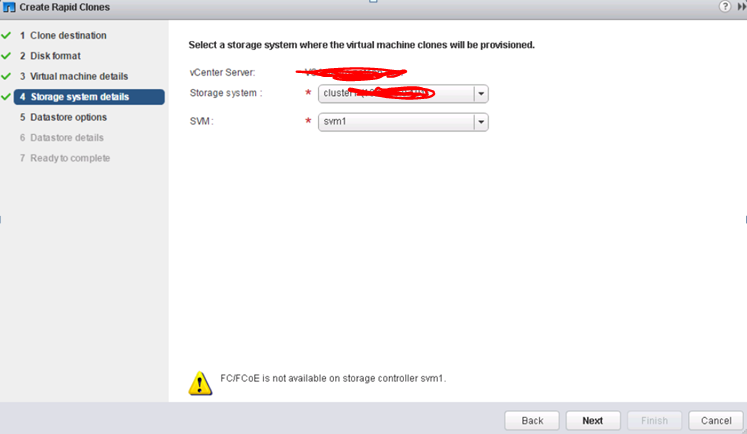
Ignore any FC/FCoE warnings and in the next tab select the format , choose same format as Source or if you have any preference of choosing THIN or THICK


Choose how many virtual processor you want and how many number of clones you want in my case I have chosen 11 and also can change the prefix of the clone machine name and choose No.of virtual processors, Memory in Size etc...


Click Next


Read through the difference between Basic and Advanced and choose which one you want to go with in my case i am going with BASIC.


Now select on to which Data store you want to save the cloned machines or can create a new data store as well I am choosing nfs1


Check the summary and click finish


You should be able to see the cloned vm’s upon refresh, can the check the column QUEUED FOR      ( Probably Milliseconds )from the recent tasks below to know how fast is Rapid Clone.


Thursday, June 16, 2016

Netapp PANIC error Root volume: "aggr0" is corrupt in process config_thread

Error :- PANIC: Root volume: "aggr0" is corrupt in process config_thread on release NetApp 
Release 7.3.2 on Fri Jul 3 08:33:45 GMT 2016
version: NetApp Release 7.3.2: Thu Oct 15 04:17:39 PDT 2009
cc flags: 8O
halt after panic during system initialization
AMI BIOS8 Modular BIOS
Copyright (C) 1985-2006, American Megatrends, Inc. All Rights Reserved
Portions Copyright (C) 2006 Network Appliance, Inc. All Rights Reserved
BIOS Version 3.0
+++++++++++++++

Solution:-  Well in this case most of us will be in dead end or contact Netapp Technical support
But what if my support contract already ended and no more support from NetApp L, that is what the exact situation I had with one of my customer and I have to deal with it and fix it.
Netapp has got some excellent features one among them is NETBOOT , in case if you don’t know about NETBOOT a little introduction

Netboot is a procedure that can be used as an alternative way to boot a NetApp Storage system from a Data ONTAP software image that is stored on a HTTP or TFTP server. Netboot is typically used to facilitate specific recovery scenarios. Some common scenarios are; correcting a failed upgrade, repairing a failed boot media, and booting the correct kernel for the current hardware platform.
Where we can Netboot a controller via a TFTP or HTTP server and then perform the repair of the root volume using WAFL_IRON & WAFL_CHECK

Procedure:-

Setup TFTP server on the partner node
Netboot the node with the corrupted /vol/vol0.

Now run WAFL_check or wafliron on the aggregate that is corrupted (mostly likely will show aggr inconsistant). Try WAFL_check first as it will run faster if that doesn't work then try wafliron.
Wafl does checksum on top of software RAID.

the command output looks like below...

*** This system has failed.
Any adapters shown below are those of the live partner, toaster1
Aggregate aggr1 (restricted, raid_dp, wafl inconsistent) (block checksums)
  Plex /aggr1/plex0 (online, normal, active)
    RAID group /aggr1/plex0/rg0 (normal)


      RAID Disk Device                  HA  SHELF BAY CHAN Pool Type  RPM  Used (MB/blks)    Phys (MB/blks)
      --------- ------                  ------------- ---- ---- ---- ----- --------------    --------------
      data      ntcsan6:19.126L0        0e    -   -          -  LUN   N/A  432876/886530048  437248/895485360
      data      ntcsan5:18.126L2        0a    -   -          -  LUN   N/A  432876/886530048  437248/895485360
      data      ntcsan5:18.126L1        0a    -   -          -  LUN   N/A  432876/886530048  437248/895485360
      data      ntcsan5:18.126L6        0a    -   -          -  LUN   N/A  415681/851314688  419880/859914720
      data      ntcsan5:18.126L5        0a    -   -          -  LUN   N/A  415681/851314688  419880/859914720
      data      ntcsan6:19.126L8        0e    -   -          -  LUN   N/A  415681/851314688  419880/859914720
      data      ntcsan6:19.126L7        0e    -   -          -  LUN   N/A  415681/851314688  419880/859914720
      data      ntcsan5:18.126L10       0a    -   -          -  LUN   N/A  415681/851314688  419880/859914720

    RAID group /aggr1/plex0/rg1 (normal)

      RAID Disk Device                  HA  SHELF BAY CHAN Pool Type  RPM  Used (MB/blks)    Phys (MB/blks)
      --------- ------                  ------------- ---- ---- ---- ----- --------------    --------------
      data      ntcsan6:19.126L12       0e    -   -          -  LUN   N/A  367837/753330176  371553/760940880
      data      ntcsan5:18.126L13       0a    -   -          -  LUN   N/A  367837/753330176  371553/760940880
      data      ntcsan6:18.126L6        0e    -   -          -  LUN   N/A  415681/851314688  419880/859914720
      data      ntcsan6:18.126L10       0e    -   -          -  LUN   N/A  411063/841857024  415215/850362240
      data      ntcsan6:18.126L13       0e    -   -          -  LUN   N/A  422730/865751040  427000/874497120


Wait until it finishes as it may take hours based on the size of aggregate.

Thursday, May 12, 2016

In Netapp_Cluster Mode we cannot have same SVM Name at Source and Destination for Snapmirror

You cannot have same SVM name at Source and Destination as i have tried in my LAB and got the error below 

Cluster1 is my Source Cluster and Cluster2 is my destination 

I used the same SVM name " SVM_TEST"  and while create i got the warning in my destination stating there is already an entry in my Name Server but i still continued choosing ok to reuse the account and guess what while i try to setup Snapmirror i got error that i must change the SVM name.... Refer to the screenshots... ( May be can give a try if you have different Name Server at Source and Destination )

Snapmirror_Test.JPG


Snap.JPG

The result is same even after trying with different NETBIOS name 

In the example below i have created a SVM named SNAP_MIRRORSRC in Cluster1


And the destination i have created SNAP_MIRRORDST


And after creating and when i try to establish the snapmirror relationship

it failed with error source and destination SVM cannot have same name


Tuesday, May 10, 2016

Introduction to Netapp Cluster Mode

Cluster Mode Introduction :- 

Virtualization plays a key role in clustered Data Ontap

                    Before server virtualization, system administrators frequently deployed applications on dedicated servers in order to maximize application performance, and to avoid the instabilities often encountered when combining multiple applications on the same operating system instance. While this design approach was effective, it also had the following drawbacks:

• It did not scale well — adding new servers for every new application was expensive.

• It was inefficient — most servers are significantly under-utilized, and businesses are not extracting the full benefit of their hardware investment.

• It was inflexible — re-allocating standalone server resources for other purposes is time consuming, staff intensive, and highly disruptive.


Server virtualization directly addresses all three of these limitations by decoupling the application instance from the underlying physical hardware.

Multiple virtual servers can share a pool of physical hardware, allowing businesses to consolidate their server workloads to a smaller set of more effectively utilized physical servers.
Additionally, the ability to transparently migrate running virtual machines across a pool of physical servers reduces the impact of downtime due to scheduled maintenance activities.

Clustered Data ONTAP brings these same benefits, and many others, to storage systems. As with server virtualization, clustered Data ONTAP enables you to combine multiple physical storage controllers into a single logical cluster that can non-disruptively service multiple storage workload needs. With clustered Data ONTAP you can:

• Combine different types and models of NetApp storage controllers (known as nodes) into a shared
physical storage resource pool (referred to as a cluster).

• Support multiple data access protocols (CIFS, NFS, Fibre Channel, iSCSI, FCoE) concurrently on the same storage cluster.

• Consolidate various storage workloads to the cluster. Each workload can be assigned its own Storage Virtual Machine (SVM), which is essentially a dedicated virtual storage controller, and its own data volumes, LUNs, CIFS shares, and NFS exports.

• Support multi-tenancy with delegated administration of SVMs. Tenants can be different companies,
business units, or even individual application owners, each with their own distinct administrators whose admin rights are limited to just the assigned SVM.

• Use Quality of Service (QoS) capabilities to manage resource utilization between storage workloads.

• Non-disruptively migrate live data volumes and client connections from one cluster node to another.

• Non-disruptively scale the cluster out by adding nodes. Nodes can likewise be non-disruptively removed from the cluster, meaning that you can non-disruptively scale a cluster up and down     during hardware refresh cycles.

• Leverage multiple nodes in the cluster to simultaneously service a given SVM's storage workloads.

• This means that businesses can scale out their SVMs beyond the bounds of a single physical node in
response to growing storage and performance requirements, all non-disruptively.

• Apply software and firmware updates, and configuration changes without downtime


Cluster Networking:-

Ports are the physical Ethernet and Fibre Channel connections on each node, the interface groups (ifgrps) you can create to aggregate those connections, and the VLANs you can use to subdivide them.

A logical interface (LIF) is essentially an IP address that is associated with a port, and has a number of associated characteristics such as an assigned home node, an assigned physical home port, a list of physical ports it can fail over to, an assigned SVM, a role, a routing group, and so on.

A given LIF can only be assigned to a single SVM, and since LIFs are mapped to physical network ports on cluster nodes this means that an SVM runs, in part, on all nodes that are hosting its LIFs.

Routing tables in clustered Data ONTAP are defined for each Storage Virtual Machine. Since each SVM has it’s own routing table, changes to one SVM’s routing table does not have impact on any other SVM’s routing table.

IPspaces are new in Data ONTAP 8.3, and allow you to configure a Data ONTAP cluster to logically separate one IP network from another, even if those two networks are using the same IP address range.

IPspaces are a mult-tenancy feature that allow storage service providers to share a cluster between different companies while still separating storage traffic for privacy and security.

Every cluster includes a default IPspace to which Data ONTAP automatically assigns new SVMs, and that default IPspace is probably sufficient for most NetApp customers who deploy a cluster within a single company or organization that uses a non-conflicting IP address range.

Broadcast Domains are also new in Data ONTAP 8.3, and are collections of ports that all have access to the same layer 2 networks, both physical and virtual (i.e., VLANs).

Every IPspace has it’s own set of Broadcast Domains, and Data ONTAP provides a default broadcast domain to go along with the default IPspace.  Broadcast domains are used by Data ONTAP to determine what ports an SVM can use for it’s LIFs.

Subnets in Data ONTAP 8.3 are a convenience feature intended to make LIF creation and management easier for Data ONTAP administrators.

A subnet is a pool of IP addresses that you can specify by name when creating a LIF. Data ONTAP will automatically assign an available IP address from the pool to the LIF, along with a subnet mask and a gateway.

A subnet is scoped to a specific broadcast domain, so all the subnet’s addresses belong to the same layer 3 network. Data ONTAP manages the pool automatically as you create or delete LIFs, and if you manually configure a LIF with an address from the pool, it will detect that the address is in use and mark it as such in the pool.

DNS Zones allow an SVM to manage DNS name resolution for it’s own LIFs, and since multiple LIFs can share the same DNS name, this allows the SVM to load balance traffic by IP address across the LIFs. To use DNS Zones you must configure your DNS server to delegate DNS authority for the subdomain to the SVM.

Monday, February 15, 2016

Configuring Flash Pool on Netapp 7-Mode as well as C-mode

NetApp Flash Pool is an intelligent storage caching product within the NetApp Virtual Storage Tier (VST) product family. A Flash Pool aggregate configures solid-state drives (SSDs) and hard disk drives (HDDs) into a single storage pool (aggregate), with the SSDs providing a fast-response-time cache for volumes that are provisioned on the Flash Pool aggregate.

Remeber that there is minimum requirement of Disk to create a FLASH POOL 

FAS3100 and FAS3200 min requirement is 3+2 ( 3 data + 2 Parity )

FAS6000 and FAS6200 is 9+2 ( 9 Data + 2 Parity )


Step 1:- You Need to enable Hybrid on your aggregate in order to have flash pool

7- Mode

aggr options aggr_name hybrid_enabled on

Cluster Mode 

storage aggregate modify -aggregate aggr_name -hybrid_enabled true


Step 2:- Now you can add disks using their DISK ID's , If you have more than one Raid Group you have to choose which RG 

7-Mode 

aggr add aggr_name -T SSD 6@100

cluster Mode

storage aggregate add-disks -aggregate aggr-name -disktype SSD -diskcount 3


You can verify If it is enabled as below

7-Mode

aggr status -v aggr_name

Cluster Mode

storage aggregate show -aggregate aggr_name


Once done now you need to create READ or WRITE policies in the Aggregate , Please follow the guide to create policies 


Thursday, February 11, 2016

What is host automatic LUN space reclaiming in Netapp Ontap 8.2

Data ONTAP 8.2 introduced a space reclamation feature that allows Data ONTAP to reclaim space from a thin provisioned LUN when the client deletes data from it, and also allows Data ONTAP to notify the client when the LUN cannot accept writes due to lack of space on the volume.

Supported Operating System starting from the versions below following all the later releases

VMware ESX 5.0 

Red Hat Enterprise Linux 6.2

Microsoft Windows 2012


Note:- You can only enable space reclamation through the Data ONTAP command line,


nayabclus1::> lun show -vserver svmsan -path /vol/lnxvol/lnxlun -fields
space-allocation

vserver path space-allocation
------- ---------------------- ----------------
svmsan /vol/lnxvol/lnxlun disabled


Now Enable space reclamation for the LUN lnxlun

nayabclus1::> lun modify -vserver svmsan -path /vol/lnxvol/lnxlun -space-allocation
enabled

Check the LUN's space reclamation setting now

nayabclus::> lun show -vserver svmsan -path /vol/lnxvol/lnxlun -fields space-allocation

vserver path space-allocation
------- ---------------------- ----------------

svmsan /vol/lnxvol/lnxlun  enabled


The space reclamation has been enabled