Monday, February 15, 2016

Configuring Flash Pool on Netapp 7-Mode as well as C-mode

NetApp Flash Pool is an intelligent storage caching product within the NetApp Virtual Storage Tier (VST) product family. A Flash Pool aggregate configures solid-state drives (SSDs) and hard disk drives (HDDs) into a single storage pool (aggregate), with the SSDs providing a fast-response-time cache for volumes that are provisioned on the Flash Pool aggregate.

Remeber that there is minimum requirement of Disk to create a FLASH POOL 

FAS3100 and FAS3200 min requirement is 3+2 ( 3 data + 2 Parity )

FAS6000 and FAS6200 is 9+2 ( 9 Data + 2 Parity )


Step 1:- You Need to enable Hybrid on your aggregate in order to have flash pool

7- Mode

aggr options aggr_name hybrid_enabled on

Cluster Mode 

storage aggregate modify -aggregate aggr_name -hybrid_enabled true


Step 2:- Now you can add disks using their DISK ID's , If you have more than one Raid Group you have to choose which RG 

7-Mode 

aggr add aggr_name -T SSD 6@100

cluster Mode

storage aggregate add-disks -aggregate aggr-name -disktype SSD -diskcount 3


You can verify If it is enabled as below

7-Mode

aggr status -v aggr_name

Cluster Mode

storage aggregate show -aggregate aggr_name


Once done now you need to create READ or WRITE policies in the Aggregate , Please follow the guide to create policies 


Thursday, February 11, 2016

What is host automatic LUN space reclaiming in Netapp Ontap 8.2

Data ONTAP 8.2 introduced a space reclamation feature that allows Data ONTAP to reclaim space from a thin provisioned LUN when the client deletes data from it, and also allows Data ONTAP to notify the client when the LUN cannot accept writes due to lack of space on the volume.

Supported Operating System starting from the versions below following all the later releases

VMware ESX 5.0 

Red Hat Enterprise Linux 6.2

Microsoft Windows 2012


Note:- You can only enable space reclamation through the Data ONTAP command line,


nayabclus1::> lun show -vserver svmsan -path /vol/lnxvol/lnxlun -fields
space-allocation

vserver path space-allocation
------- ---------------------- ----------------
svmsan /vol/lnxvol/lnxlun disabled


Now Enable space reclamation for the LUN lnxlun

nayabclus1::> lun modify -vserver svmsan -path /vol/lnxvol/lnxlun -space-allocation
enabled

Check the LUN's space reclamation setting now

nayabclus::> lun show -vserver svmsan -path /vol/lnxvol/lnxlun -fields space-allocation

vserver path space-allocation
------- ---------------------- ----------------

svmsan /vol/lnxvol/lnxlun  enabled


The space reclamation has been enabled

Thursday, October 8, 2015

Netapp Load Share Mirroring For Volume

What are Load Sharing Mirrors

One can create a load sharing mirroring relationship on a FlexVolume which has high read hits. We can have one or more load sharing volumes for a source volume where all the read's would be directed to the destination read-only volumes which acts as load sharing for the source volume.

To create a load Sahring volume we have to choose -type parameter as DP, Now i have volume Manufacturing where i will be creating two load sharing volumes (Mirror1 & 2)

Nayab_C01::> volume create -vserver vs0 -volume Manufacturing_mirror1
-aggregate aggr2 -size 3GB -type DP

Creating one more load sharing mirror volume

Nayab_C01::> volume create -vserver vs0 -volume Manufacturing_mirror2
-aggregate aggr2 -size 3GB -type DP

After we have created Load Sharing mirror volume we have to establish relationship with the designated volume to direct all READ'S to the load sharing volumes and when configuring Snapmirror we have to choose -type as LS


Nayab_C01::> snapmirror create -source-path //vs0/Manufacturing
-destination-path //vs0/Manufacturing_mirror1 -type LS

[Job 171] Job is queued: snapmirror create the relationship with destination
[Job 171] Job succeeded: SnapMirror: done


Doing same for mirror2

Nayab_C01::> snapmirror create -source-path //vs0/Manufacturing
-destination-path //vs0/Manufacturing_mirror2 -type LS

[Job 201] Job is queued: snapmirror create the relationship with destination
[Job 201] Job succeeded: SnapMirror: done

Once we had the relationship established now we have initialize the baseline copy for Load Sharing

Nayab_C01::> snapmirror initialize-ls-set //vs0/Manufacturing

[Job 211] Job is queued: snapmirror load-share initialize for source //vs0/Manufacturing


Now we will have all our READ's redireced to the loadsharing destination volumes

Things to Remember :-

1) A load sharing volume should be mounted under the same SVM namespace as the source volume

2) Load Sharing volume is not supported for Infinite Volume

3) Load Sharing mirrors should be created on different aggregates and accessed by different node in the cluster to achieve load balancing

4) NFSv4 clients are not supported with read-only load-sharing mirrors, Inorder all the traffic from      NFSV4 clients will be routed to source volume from READ's and WRITE's


Monday, September 21, 2015

Netapp Cluster Mode Maximum Volume parameters


Parameter
Maximum Value
Maximum Volumes/Node
500
Maximum Volumes/24-Node
1,200
Minimum Flexible Volume
20MB
Maximum Flexible Volume ( 32-Bit )
16TB
Maximum flexible volume ( 64-Bit )
50TB to 100TB

Wednesday, September 9, 2015

How to search or view Events, Alerts or notifications in Netapp Cluster Mode

event log show -event *<keyword>*

For Ex:- event log -event *disk* ( This will show all the events with respect to disk )

event log show -event *<phrase>*

Ex:- event log show -event *"on-disk mailboxes"*

event log show -messagename *<msgname>*

Ex:- even log show --messagename kern.uptime.filer ( This will all the events with respect to uptime of the filer )

event log show -severity *<keyword>*

Levels of Severity :- Emergency, Alert, Critical, Error, Warning, Notice, Informational, Debug

Ex:- event log show -severity INFORMATIONAL ( This will show all the informational events )

event log show -time >= timeframe 

Ex:- event log show -time >=30mins  ( This will show events for last 30mins )

event log show -node  *<nodename>*

Ex:- event log show -node cluster01-02 ( This will show events of that particular node )

Tuesday, July 28, 2015

Replacing a Mother Board in a NETAPP cluster-mode controller

Recently i have replaced a mother board in a cluster mode system for one of my customer and after replacing i have booted the controller and observed it booted in to 7-Mode then immediately realized that i need to change the BOOTARG setting

bootarg.init.boot_clustered true 

Cluster mode needs a specific programmable ROM (PROM) environment variable setting to be set as above. Once after i have changed the settings my controller booted in to cluster mode :)

Tuesday, June 16, 2015

What are interface groups in Netapp

An interface group is a mechanism to group together multiple network interfaces (links) into one logical interface (aggregate). After an interface group is created, it is indistinguishable from a physical network interface.
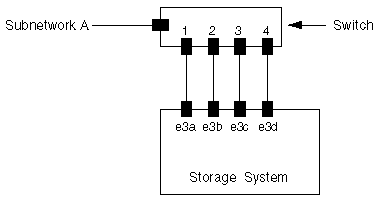
The following figure shows four separate network interfaces, e3a, e3b, e3c, and e3d, before they are grouped into an interface group


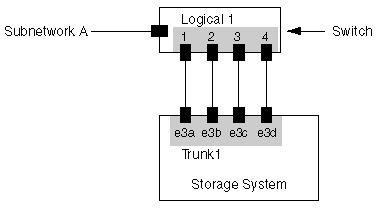
The diagram below shows four interfaces trunked together as Trunk1 


Different vendors termed it with their own unique name virtual Aggregation or Link Aggregation or Trunks or Ether Channel


Interface groups provide several advantages over individual network interfaces:
  • Higher throughput
    Multiple interfaces work as one interface.
  • Fault tolerance
    If one interface in an interface group goes down, your storage system stays connected to the network by using the other interfaces.
  • No single point of failure
    If the physical interfaces in an interface group are connected to multiple switches and a switch goes down, your storage system stays connected to the network through the other switches.

Tuesday, June 2, 2015

Simple Notes to understand Vfiler's in Netapp

Vfiler also called as virtual filer is a logical partition of network and storage resources in Ontap
To avail vfiler functionality need to install MULTISTORE license.
 
Protocols supported :- NFS, CIFS, iSCSI, HTTP, NDMP, FTP, SSH and SFTP
 
Maximum vfiler's :- 64 vfiler's can be created on a storage controller
 
Vfiler configuration are saved in volumes/qtrees where they are being created
 
Best practice is to have a volume as resource of a vfiler
 
Destroying a vfiler won't destroy data instead the volume will be moved to the vfiler0 ( Which is the default vfiler created once license installed ) . Also take note FCP protocol is supported only in vfiler0
 
Can use DATAMOTION to migrate vfiler
 
All the routing information  for the vfiler's can be viewed from the /etc/rc of vfiler0
 
One can add/delete/move resources like volumes/qtrees and interfaces between vfiler's


How to configure Netbackup KMS


Configuration of NetBackup KMS
 
 NetBackup security and encryption provide protection for all parts of NetBackup
operations. The parts that are made secure include the NetBackup master server,
media server, and attached clients. Also made secure are the operating systems
on which the servers and clients are running. The backup data is protected through
encryption processes and vaulting. NetBackup data that is sent over the wire is
protected by dedicated and secure method.
 
Here we are going to configure the tape based encryption, Please note that there is Media sever level encryption as well.

1)    Tape Library Configuration
 

a.      Application Managed Encryption (AME) does not require a key.

Library Managed Encryption (LME) and System Managed Encryption (SME) require a license key which is available by purchasing Feature Code 5900. Minimum


·        Prerequisites for Application Managed Encryption (AME) - LTO 6

·        SAS and Fibre Channel LTO Ultrium 6 Tape Drive (Full High or Half High)

·        Ultrium 6 Tape Cartridge

·        Library firmware level B.50 or higher

·        Drive firmware level C800 or higher, for reference go to http://www.ibm.com/fixcentral.

·        Encryption Key Manager application

b.      Tape Library:

                                                    i.     Click Configure Library > Encryption in the left navigation panel.

                                                   ii.     On the Encryption screen, select an Encryption method for each logical library. Without an encryption license key, select None or Application Managed Encryption.

                                                  iii.     Click Submit to apply the changes.

 
2)    Overriding the Symantec Intrusion Security policy (IPS)

 
a.      Use SSH to login to the appliance as an Administrator

b.      Go to Support > Maintenance menu. If you try to access the elevate command the following message is displayed:
 
Permission Denied !! Access to the root account requires overriding the Symantec Intrusion Security Policy. Please refer to the appliance security guide for overriding

c.      Run the Support > Maintenance command.

d.      To enter your Maintenance account, run the following command, and provide the password when you receive a prompt.

 NBAppl.Support > Maintenance

<!--Maintenance Mode--!>

maintenance’s password:
 
e.      In the Maintenance mode, type the following command to override the Symantec

Intrusion Security Policy:

/opt/Symantec/scspagent/IPS/sisipsoverride.sh

 To override the policy and disable protection, enter your login password.

Password:

f.       Enter your maintenance password.

 The appliance then displays the following options:

Choose the type of override that you wish to perform:

1. Override Prevention except for Self Protection

2. Override Prevention Completely

Choice?

 g. Enter 1 to override prevention except for self protection.

 The appliance displays the following options:

Choose the amount of time after which to automatically re-enable:

1. 15 minutes

2. 30 minutes

3. 1 hour

4. 2 hours

5. 4 hours

6. 8 hours

7. never

 h.      Enter the appropriate number from 1 to 7 based on the time required to debug the Symantec support case.

The appliance displays the following message:

Enter a comment. Press Enter to continue.

i. Enter a relevant comment as to why the override is required.

 The appliance overrides the policy and displays the following message:

Please wait while the policy is being overridden.

........

The policy was successfully overridden.

 maintenance - !> elevate

 You should now have access to the root account for debugging the appliance.

 3)    Installation and Configuration of KMS
 
a. Run the following command to change directory:

 maintenance - !> cd /opt/openv/netbackup/bin

 b. Run the nbkms -createemptydb command.

c. Enter a passphrase for the host master key (HMK). You can also press Enter to create a randomly generated key.

d. Enter an ID for the HMK. This ID can be anything descriptive that you want to use to identify the HMK.

e. Enter a passphrase for the key protection key (KPK).

f. Enter an ID for the KPK. The ID can be anything descriptive that you want to use to identify the KPK.

g.The KMS service starts when after you enter the ID and press Enter.

h. Start the service by running the following command:

 nbkms

i. Use the grep command to ensure that the service has started, as follows:

 ps -ef | grepnbkms

 j.       Create the key group. The key group name must be an identical match to the volume pool name. All key group names must have a prefix ENCR_.

 To create a key group use the following command syntax.

 nbkmsutil -createkg -kgname ENCR_volumepoolname

 The ENCR_ prefix is essential. When BPTM receives a volume pool request that includes the ENCR_ prefix, it provides that volume pool name to KMS. KMS identifies it as an exact match of the volume pool and then picks the active key record for backups out of that group.

k.      Create a key record by using the -createkey option.

nbkmsutil -createkey -kgname ENCR_volumepool -keyname keyname -activate -desc "message"

 The key name and message are optional; they can help you identify this key when you display the key. The -activate option skips the prelive state and creates this key as active.

l.       Provide the passphrase again when the script prompts you.

 In the following example the key group is called ENCR_pool1 and the key name is Q1_2008_key. The description explains that this key is for the months January, February, and March.

 nbkmsutil -createkey -kgname ENCR_pool1 -keyname Q1_2008_key -activate -desc "key for Jan, Feb, & Mar"

 m.    You can create another key record using the same command; a different key name and description help you distinguish they key records:

 nbkmsutil -createkey -kgname ENCR_pool1 -keyname Q2_2008_key -activate –desc "key forApr, May, & Jun"

 Note: If you create more than one key record by using the command nbkmsutil -kgname name -activate, only the last key remains active.

 n.      To list all of the keys that belong to a key group name, use the following command:

 nbkmsutil -listkeys -kgname keyname

Note: Symantec recommends that you keep a record of the output of the nbkmsutil -listkeys command. The key tag that is listed in the output is necessary if you need to recover keys.